Emailing and Printing Your Meal Plan
-
To email or print your meal plan for the week surrounding the currently selected date, tap the Actions (•••) button in the top-right corner and select Email, Print, Share & Subscribe.

-
Select Send Meal Plan, Send with Gmail, Copy to Clipboard, or Print Meal Plan.

-
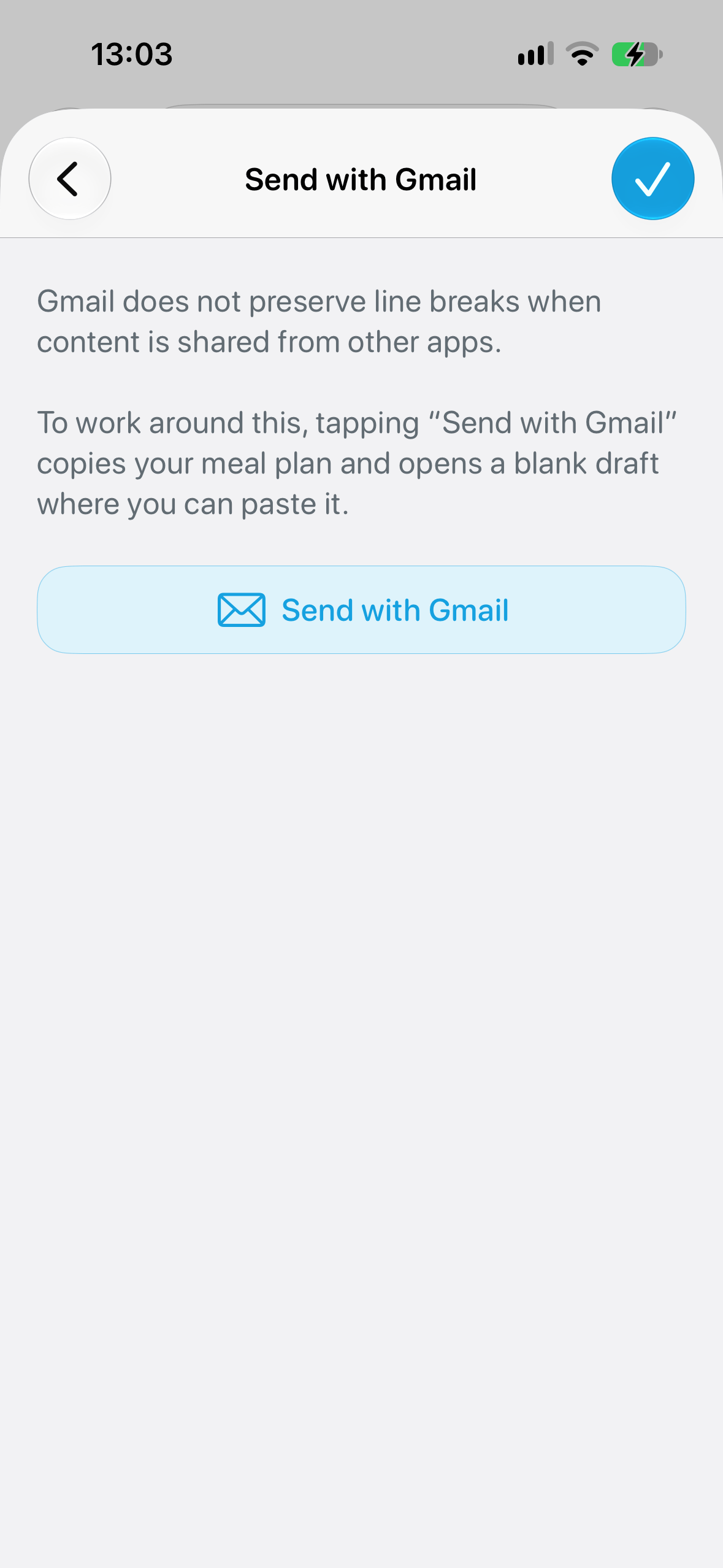
Send with Gmail is only available on mobile devices and works around a limitation of the Gmail app, which doesn’t preserve line breaks in content shared from other apps. Tap Send with Gmail on the next screen, and AnyList will copy your meal plan and open a new Gmail message where you can paste it.
Did this answer your question? If not, please search all of our articles. If you don’t find an answer, then contact us and we’ll be happy to help.