Feature Overview - Meal Plan Templates
Save time by creating templates for meal plans you follow regularly, like a weekly routine or special diet plan.
On this page
Creating a Template
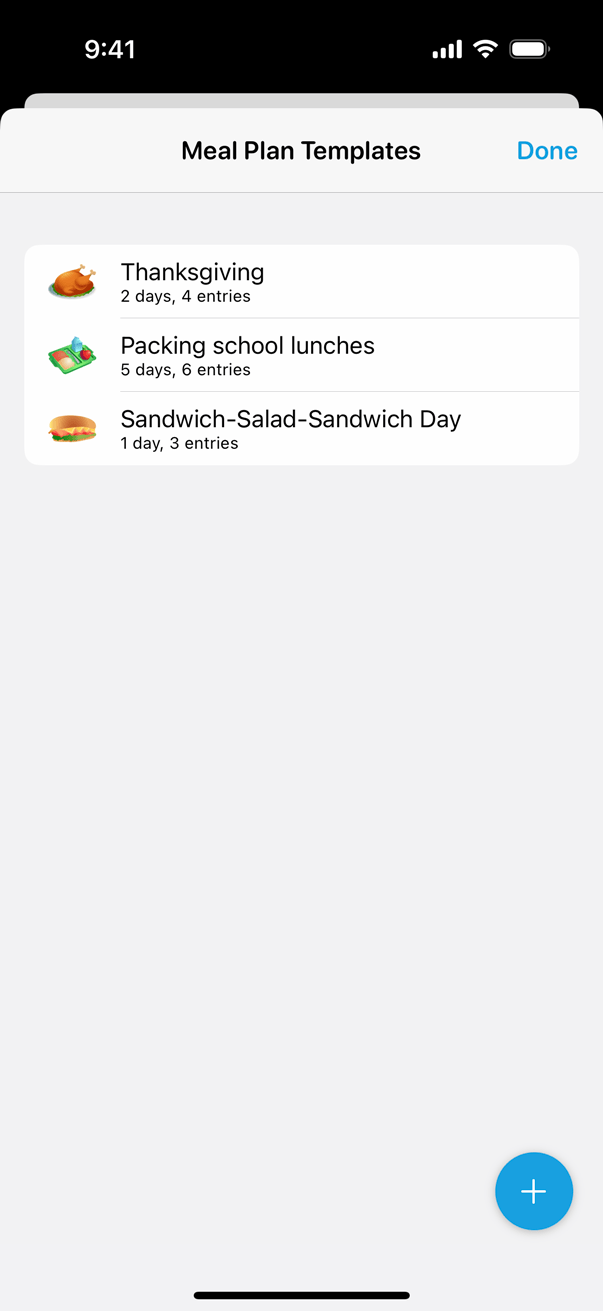
While viewing your Meal Plan, tap the Actions (•••) menu in the top-right corner and select Templates.

Tap the blue + button in the bottom-right corner to create a new template.
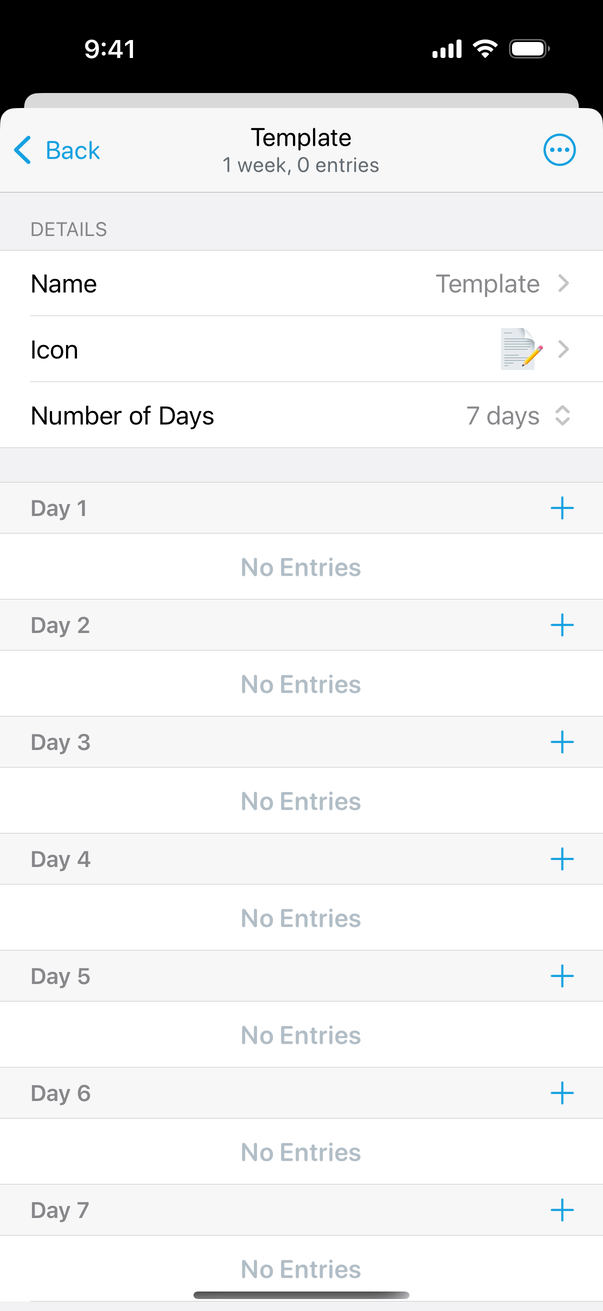
From there, you can enter a name for the template and select an icon. Templates default to 7 days, but you can choose any duration ranging from 1 to 31 days.
Tap the + button next to each day to add entries to each day of the template.
Adding Templates to Your Calendar
From the Calendar tab, tap the + button next to the day you want to become Day 1 of the template.
On the Add Entries screen, tap Templates and select the template you want to add.
You’ll see a preview of the template, showing the dates assigned to each day of the template. From there, tap Add to Calendar to add all of the entries from the template to your calendar.
Did this answer your question? If not, please search all of our articles. If you don’t find an answer, then contact us and we’ll be happy to help.